
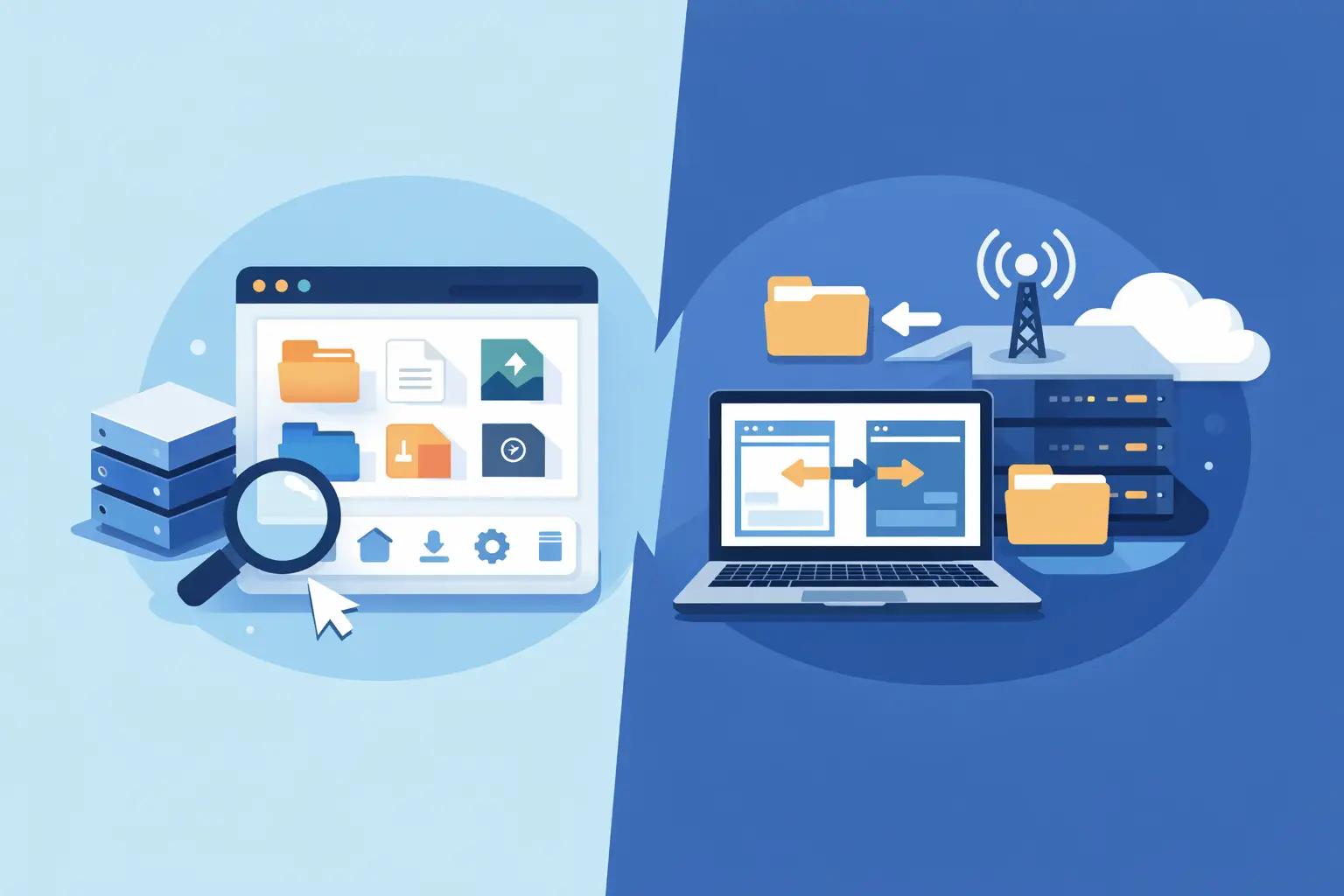
Your website is live, but you need to replace an image, upload a verification file, or fix a small configuration error. The question behind cPanel File Manager vs FTP for beginners is simple: which option gets the job done without creating a bigger problem?
Both tools let you work with the files stored on your hosting account. Neither is automatically better in every situation. cPanel File Manager is usually the easiest starting point because it works directly in your browser. FTP is often faster and more convenient once you regularly move larger groups of files.
The right choice depends on what you are changing, how often you need access, and how comfortable you are working with website folders.
What cPanel File Manager Does
cPanel File Manager is a built-in file browser inside your hosting control panel. After signing in to cPanel, you can open File Manager and view the folders and files associated with your website. For most primary domains, the public website files are stored in a folder called public_html.
It works much like the file browser on your computer. You can open folders, upload files, create new folders, rename items, delete old files, adjust permissions, and edit text-based files such as HTML, CSS, PHP, or .htaccess files.
The biggest advantage is convenience. There is no software to install and no separate connection to configure. If you can sign in to your hosting account, you can use it from nearly any computer with a modern browser.
For a first-time website owner, that matters. If your developer asks you to upload a single file for domain verification or replace a logo image, File Manager provides a direct, low-friction way to do it.
When File Manager Is the Better Choice
Use File Manager when you need to make a small, quick change. It is especially practical for uploading one or two files, checking whether a file exists, editing a short code snippet, or creating a backup archive before an update.
It can also help when you are away from your usual computer. Because it runs in your browser, you do not need to install an FTP application on a new device just to handle a minor task.
File Manager is also useful for WordPress troubleshooting. If a plugin causes an error and you cannot access the WordPress dashboard, you can open wp-content/plugins and temporarily rename the problem plugin folder. This is a simple way to disable a plugin without deleting its files.
That said, browser-based file management has limits. Uploading a large website backup can be slower or less reliable than using an FTP client, particularly on an unstable internet connection. Managing many folders at once can also feel tedious in a browser window.
What FTP Does
FTP stands for File Transfer Protocol. It is a way to connect your computer to your hosting account through an FTP client, such as FileZilla, Cyberduck, or another compatible program.
After connecting, the FTP client shows your computer files on one side and your hosting files on the other. You can drag files between them, copy whole folders, monitor transfer progress, and queue multiple uploads or downloads.
For security, look for SFTP or FTPS rather than plain FTP whenever your hosting setup supports it. These secure connection methods protect your login credentials and file transfers while they travel across the internet. Your cPanel account can provide the connection details and FTP account management tools you need.
FTP does require a little setup. You need the server hostname, username, password, port, and connection type. That can sound technical at first, but you only need to configure it once in most cases. After that, your client can save the connection for future use.
When FTP Is the Better Choice
FTP is the stronger option when you are moving many files or larger files. For example, a web designer uploading a complete site theme, a business owner restoring a media library, or a blogger moving hundreds of images will usually save time with an FTP client.
It is also helpful when a transfer is interrupted. Most good FTP clients can resume partially completed uploads instead of forcing you to start again. That is valuable when working with large video files, backup archives, or extensive website folders.
FTP is not ideal for quick edits to a single line of code. You would typically download the file, edit it locally, save it, and upload it again. For a tiny one-time change, File Manager is often faster.
cPanel File Manager vs FTP for Beginners: A Simple Comparison
The easiest way to choose is to think about the size and frequency of your task.
File Manager is best for quick, occasional work. It is already available in cPanel, requires no additional software, and makes routine tasks approachable. Upload a verification file, edit a small text file, create a folder, or inspect your site files without leaving your browser.
FTP is best for repeated or large transfers. It gives you more control over upload queues, makes it easier to move full folders, and is usually more efficient when you manage a site regularly.
There is also a practical difference in how each tool feels. File Manager is designed for immediate access. FTP is designed for file transfer workflow. Beginners do not need to choose one tool forever. Many site owners use File Manager for small fixes and FTP for larger projects.
Common Tasks and the Best Tool for Each
If you need to upload a single HTML file for a search engine or email service verification, File Manager is usually the simplest choice. Upload the file to public_html, then confirm it is accessible at the required web address.
If you are uploading a new website from a designer, FTP is generally more comfortable. You can upload the full folder structure in one transfer and review the progress while it runs.
If you need to change a basic setting in .htaccess, File Manager is convenient because you can edit the file directly. Take care before saving changes, though. A small typo in this file can affect redirects, page access, or WordPress permalinks.
If you want to download a complete copy of your website files, FTP may be more dependable for the transfer itself. However, a proper backup should also include your database. For WordPress and many other content-driven sites, the database contains posts, settings, user information, and other essential content that file downloads alone do not capture.
If you need to disable a broken WordPress plugin, File Manager is often enough. Rename the plugin folder, test your site, and then investigate the underlying issue from the WordPress dashboard or with support assistance.
Avoid These Beginner File Management Mistakes
The greatest risk is not choosing the wrong tool. It is changing or deleting the wrong file. Website folders can contain files that look unfamiliar but are required for your site, email settings, applications, or server rules.
Before editing anything, make a backup. In File Manager, you can often compress the relevant folder into a ZIP archive and download it. For a fuller site backup, use your hosting backup tools or a trusted website backup service. A backup gives you a practical way back if a change does not work as expected.
Be careful with the public_html folder. Files inside it are commonly visible on your website, while files stored outside it may not be public. Uploading a file to the wrong location is a common reason it does not appear online.
Do not set file permissions to 777 just to solve an error. That setting can create a security concern on many hosting environments. Standard permissions are commonly 644 for files and 755 for folders, but your application may have specific requirements. If you are unsure, ask support before changing permissions.
Finally, protect your access details. Use a strong, unique password for cPanel and FTP accounts. Create separate FTP accounts for contractors when possible, and remove access when the work is complete. This gives you better control than sharing your main cPanel login.
A Good Starting Workflow
Start with cPanel File Manager for occasional tasks. Learn where your main website files live, how to upload a file, and how to create a backup before editing. Those skills cover many of the everyday requests that come up when running a small website.
Move to SFTP or FTPS when you begin transferring larger files, working with a designer, or making regular updates from your computer. A quality hosting account with familiar cPanel tools makes it easy to use both approaches as your needs grow. Visiba customers can also rely on expert support when a file path, permission setting, or connection detail is unclear.
You do not need to become a server administrator to manage your website well. Make one change at a time, keep a backup before you edit, and choose the tool that makes the task feel clear rather than complicated.