
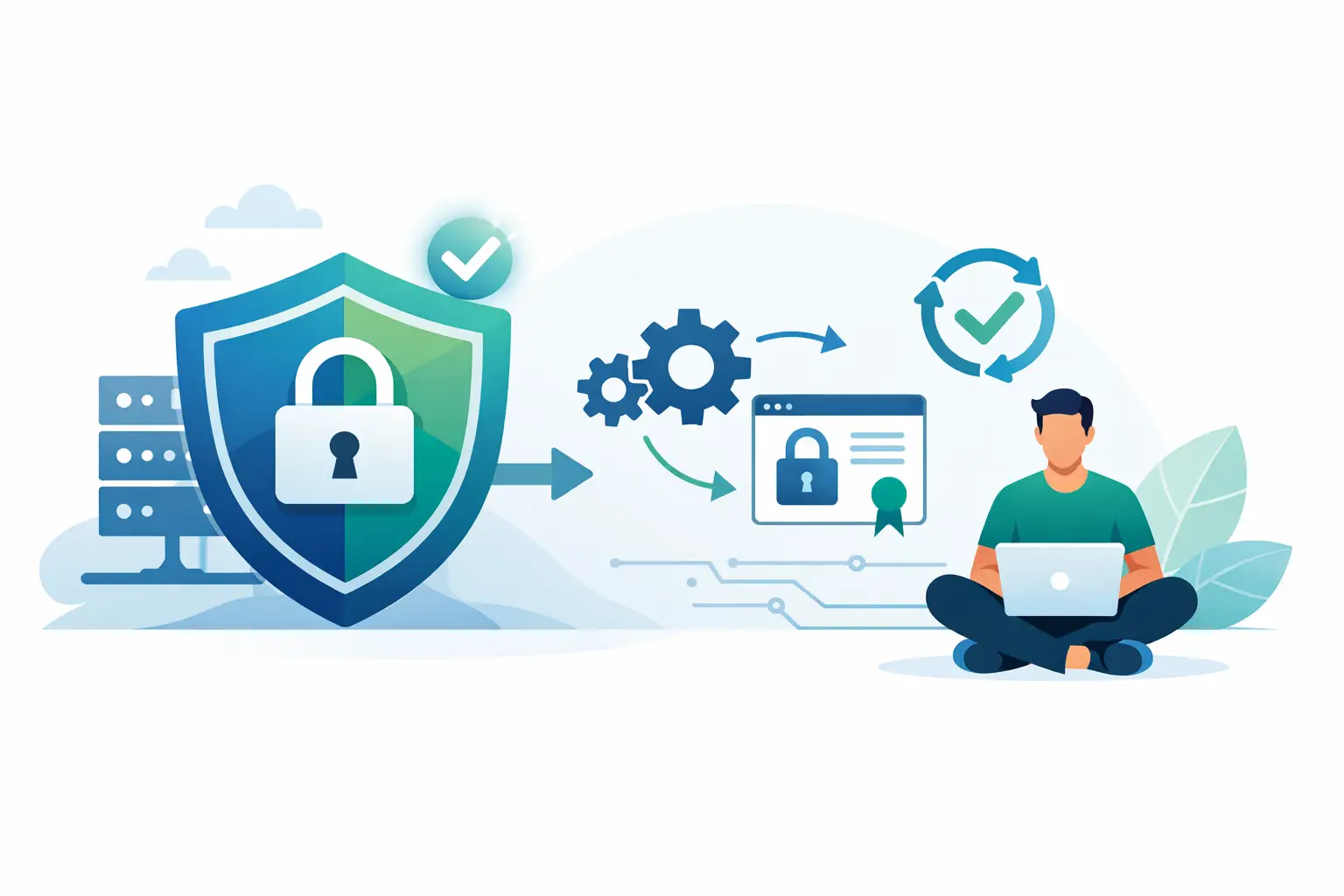
A browser warning that says “Not Secure” can make a new website look unfinished before a visitor reads a single word. SSL fixes that by encrypting traffic between your website and its visitors, but the old process of buying, requesting, installing, and renewing certificates was easy to get wrong. If you are asking how AutoSSL works and why you don’t need to install SSL manually, it comes down to automation inside your hosting control panel.
For most websites on cPanel hosting, AutoSSL handles the certificate work in the background. It checks that a domain belongs to your hosting account, issues a trusted certificate, installs it for the right website, and renews it before it expires. You still need to understand a few basics, especially when adding a new domain or changing DNS, but you should not have to manage certificate files yourself.
What AutoSSL Actually Does
AutoSSL is a cPanel feature that automatically provides and maintains domain-validated SSL certificates. A domain-validated certificate confirms control of a domain, such as yourbusiness.com. It enables HTTPS, the secure version of HTTP that browsers expect for websites, forms, logins, and online stores.
When AutoSSL runs, it looks for domains assigned to your hosting account. That can include your primary domain, addon domains, subdomains, and often the www version of each domain. For every eligible address, it performs a validation check. Once validation succeeds, AutoSSL requests a certificate from the certificate provider configured by the hosting server.
The system then installs the certificate and private key in the correct place on the server. Your site can serve pages over HTTPS without you copying certificate text into cPanel, creating a certificate signing request, or manually matching a private key to a certificate. Those steps are real, and they still matter in specialized hosting environments. For the typical small business site, blog, portfolio, or WordPress installation, AutoSSL removes them from your to-do list.
How AutoSSL Works Behind the Scenes
The key step is domain control validation. A certificate authority will not issue an SSL certificate merely because someone asks for one. It needs evidence that the requester controls the domain.
With AutoSSL, cPanel commonly performs that check through a temporary file or validation path on your website. The certificate authority tries to reach that location using your domain name. If it can reach the expected response, validation passes. This process is often called HTTP validation.
That is why your domain needs to point to the hosting account before AutoSSL can protect it. If your domain is still pointed at an old server, a website builder, or a parking page elsewhere, the validation request goes to the wrong place. AutoSSL cannot prove ownership from there, so issuance fails until DNS is corrected.
After validation, the certificate is issued and deployed automatically. AutoSSL also keeps track of expiration dates. SSL certificates are time-limited, usually with relatively short validity periods, so renewal is not optional. AutoSSL checks certificates on a schedule and renews eligible ones before they expire. A properly configured account can stay protected year after year without a monthly certificate task.
What visitors see after installation
Once the certificate is active and your site is configured to use HTTPS, visitors see the padlock indicator in their browser. The connection is encrypted, helping protect information sent through contact forms, account logins, checkout pages, and admin panels.
SSL also supports trust. Modern browsers may warn visitors when a site collects information without HTTPS, and search engines generally expect secure websites. SSL alone does not prove that a business is legitimate or that a website is free of threats. It does prove that data traveling between the visitor and the server is encrypted and that the certificate was issued for the domain.
Why You Don’t Need to Install SSL Manually
Manual SSL installation is mainly a process of moving several technical pieces into the right locations: the certificate, the private key, and sometimes an intermediate certificate bundle. If one item is missing or mismatched, visitors can see certificate errors. Manual renewal adds another deadline, another installation, and another chance for a site to display a browser warning.
AutoSSL eliminates that recurring maintenance for standard domain-validated certificates. Instead of treating SSL as a product that must be installed and renewed by hand, your hosting platform treats it as a managed security essential.
This approach is especially useful when you run more than one site. A freelancer may manage client portfolios, a small business may use a main site plus a store subdomain, and a blogger may test projects on subdomains. Keeping track of separate certificate requests and expiration dates for all of them is unnecessary work when AutoSSL can cover eligible domains automatically.
At Visiba, free SSL is built into cPanel hosting so customers can focus on publishing, selling, and managing their websites instead of handling certificate files. That does not mean SSL is something to ignore. It means the routine work is handled for you, while cPanel gives you visibility when a domain needs attention.
AutoSSL Still Depends on Correct Setup
AutoSSL is automatic, not magic. A few common setup issues can prevent a certificate from being issued or renewed.
The most common problem is DNS. Your domain must resolve to the hosting server that is running AutoSSL. If you recently changed nameservers or edited DNS records, allow time for those changes to propagate. During that period, validation can fail because different visitors and services may still reach the old location.
Another issue is an incorrect website configuration. If the domain is not added to cPanel, does not have a document root, or redirects validation requests somewhere AutoSSL cannot use, the check may not complete. Security rules, password protection, unusual rewrite rules, and proxy settings can also interfere in some cases.
A site may also have a valid certificate but still show a warning after moving to HTTPS. That is often a mixed-content issue. The page loads over HTTPS, but an image, script, font, or stylesheet is still being requested with an HTTP address. The certificate is not the problem. Update those old resource URLs or use a site tool that replaces them safely.
HTTPS redirects are separate from certificate issuance
AutoSSL installs the certificate, but it may not automatically force every visitor to use HTTPS. A visitor could still type an old HTTP address unless your website, application, or hosting configuration redirects traffic to the secure version.
For WordPress, this often means confirming that both the WordPress Address and Site Address use https://. Many hosting accounts also offer a simple cPanel setting to force HTTPS redirects for a domain. Enable the redirect after the certificate has been issued successfully. Turning it on too early can make troubleshooting harder if validation has not finished.
When Manual SSL May Still Make Sense
AutoSSL is the right choice for most shared-hosting customers, but there are exceptions. Some organizations need a particular commercial certificate provider because of internal compliance requirements, vendor rules, or business policy. Others use extended validation or organization-validated certificates, which involve a different verification process and may show business identity details in certificate information.
You may also need manual management for unusual server setups, custom services outside standard web hosting, or certificates that secure applications beyond a website domain. Wildcard certificates can be another consideration. Depending on the AutoSSL provider and server configuration, coverage for wildcard domains may differ from coverage for individual subdomains.
For a standard site, do not assume a paid certificate is automatically more secure than an AutoSSL certificate. Encryption strength is not determined by the price tag. The difference is usually in validation type, management requirements, support expectations, or a specific business need.
How to Check Your AutoSSL Status in cPanel
You do not need to install certificates manually, but checking status after launching a domain is smart. In cPanel, look for the SSL/TLS Status section. It shows which domains are protected, which are excluded, and whether a certificate check is pending or has failed.
If a new domain is not covered, first confirm that its DNS points to your hosting account and that the domain has been added correctly in cPanel. Then review whether the site loads from the expected server. If the issue continues, support can help identify the validation error without asking you to sort through certificate code.
It is also worth checking the secure version of your site after major changes, such as a domain transfer, DNS update, website migration, or new subdomain. AutoSSL usually handles the routine renewal, while a quick check after infrastructure changes helps catch configuration problems early.
A secure website should be the default, not a technical project. Keep your domain pointed correctly, let AutoSSL handle issuance and renewal, and use cPanel status tools when something changes. That leaves you more time for the part of your website visitors actually came to see.