
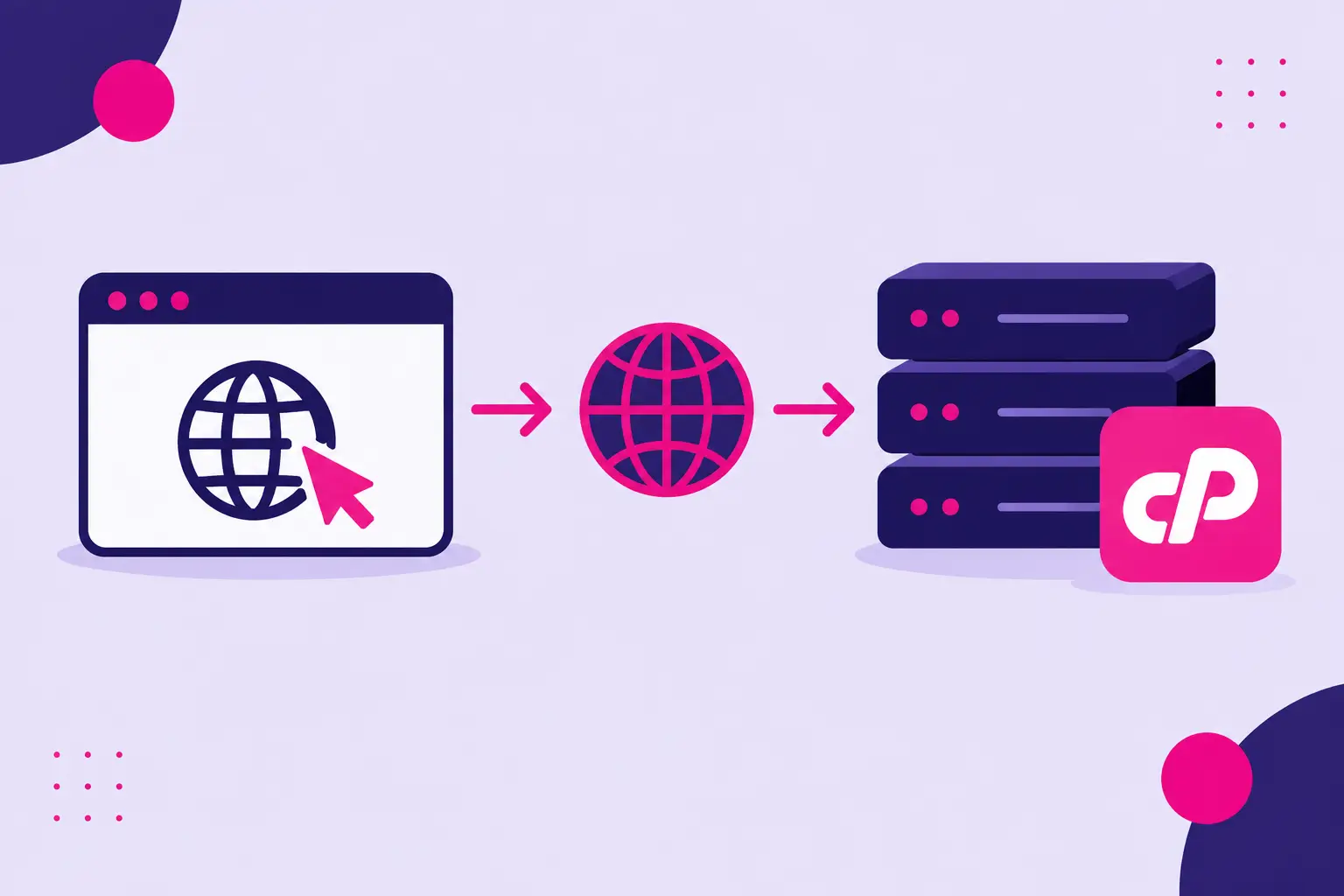
Your domain can be registered in one place and hosted somewhere else. That is normal, but it means you need to tell the domain where to find your hosting account. This guide explains how to point a domain to cPanel nameservers so visitors reach your website, your SSL certificate can be issued, and your email settings work as expected.
The change is usually straightforward. The part that causes confusion is knowing where to make it: at the company where the domain is registered, not inside your website builder or WordPress dashboard.
What cPanel Nameservers Do
Nameservers are part of the Domain Name System, or DNS. Think of them as the directory that tells browsers, email providers, and other services which server should handle your domain.
When you use your hosting provider’s nameservers, that provider manages the DNS zone for your domain. This typically includes the records needed for your website, email, FTP, and other hosting features. For a cPanel hosting account, the nameservers often look similar to ns1.yourhost.com and ns2.yourhost.com.
Your exact nameservers are supplied by your hosting provider. Do not guess them or copy examples from another host. Check your hosting welcome email, client area, or cPanel account details for the correct pair.
Before You Change Your Nameservers
Have two things ready: access to the account where your domain is registered and the exact nameservers from your hosting provider. Your registrar may be a domain company, a website platform, or even your previous hosting company.
It also helps to check whether your domain currently uses custom DNS records. This matters if you use a third-party email service, a separate website platform, or tools for verification, marketing, or security. Changing nameservers replaces the DNS management location, so records held at the old DNS provider may not automatically follow.
For example, if you use Microsoft 365 or Google Workspace for email, you will likely need to add its MX, SPF, and DKIM records in your new cPanel DNS zone after the nameserver change. If you skip that step, your website may work while email stops arriving.
How to Point a Domain to cPanel Nameservers
1. Find the nameservers for your hosting account
Start with the nameservers listed by your host. A Visiba hosting account, for example, includes the nameserver information needed to connect your domain to its cPanel hosting environment.
You will normally receive two nameservers, although some providers supply more. Copy them exactly, including any numbers. They commonly appear in a format such as:
ns1.examplehost.com ns2.examplehost.com
Do not enter your domain name, server IP address, or cPanel login URL in the nameserver fields. Those are different settings.
2. Sign in to your domain registrar
Go to the account where you purchased or currently manage the domain. Look for an area labeled Domains, Domain Management, DNS, Nameservers, or Manage Domain.
If your domain and hosting are with the same company, the process may be automated or available through a single control panel. Still, confirm that the domain is assigned to the correct hosting account before assuming everything is connected.
3. Open the nameserver settings
Choose the domain you want to connect, then find the nameserver option. Most registrars give you a choice between their default nameservers and custom nameservers.
Select the custom option. You may see fields for Nameserver 1 and Nameserver 2, along with optional fields for additional nameservers. Enter the values supplied by your hosting provider.
Replace the existing nameservers rather than adding the new ones alongside old values. Mixing nameservers from different DNS providers can cause inconsistent results, where some visitors see your new site and others see an error or an older version.
4. Save the change
Save or confirm your updated nameserver settings. Some registrars ask you to verify the change by email or through account security prompts. Complete any confirmation request so the update is not left pending.
After saving, your registrar may show the new nameservers immediately. That does not mean the entire internet has updated yet. DNS changes need time to spread across networks.
5. Add the domain to cPanel if needed
Pointing nameservers directs traffic to your hosting provider, but your cPanel account must also be prepared to host the domain.
If the domain is your main domain, it may already be configured. If it is an additional domain, sign in to cPanel and use the Domains section to add it. Select the document root carefully. This folder determines which website files load when someone visits the domain.
For a new WordPress website, you can install WordPress after the domain is added. Many cPanel hosts provide a one-click installer that creates the files and database for you.
How Long Does a Nameserver Change Take?
Nameserver changes commonly begin working within a few hours, but full DNS propagation can take up to 24 to 48 hours. The timing depends on your registrar, DNS caching, and internet providers around the world.
During that window, you may see different results depending on your location or device. Your site may load on mobile data but not on your home Wi-Fi, or it may show the old website briefly before switching to the new one. That is usually propagation, not a failed setup.
Avoid changing nameservers repeatedly while waiting. Each new change can extend the process and make troubleshooting harder.
Check That Your Domain Is Connected
Once the change has had time to propagate, enter your domain in a browser. If your hosting account is ready, you may see your website, a default hosting page, or a WordPress setup page.
You should also test both versions of the address: the domain with www and without it. Your hosting configuration can redirect one version to the other, but both should resolve correctly.
If you plan to use email on the domain, send a test message to and from the new address. Then check your cPanel Email Accounts section to confirm the mailbox exists. A working website does not guarantee that mail records are configured correctly.
Finally, check your SSL status after the domain resolves to the hosting account. Free SSL certificates are often issued automatically, but they cannot be validated until the domain points to the correct server. If your browser shows a security warning after propagation, give the certificate system some time, then contact hosting support if it remains unresolved.
Common Problems After Changing Nameservers
The most common issue is entering the wrong nameservers. Compare every character with the values in your hosting account. A small typo is enough to prevent the domain from resolving.
Another common problem is that the domain has not been added in cPanel. The DNS may be correct, but the server has no website folder assigned to that domain. Add it through cPanel or ask your host to confirm the domain is attached to your plan.
Email interruptions are also common when switching from another DNS provider. Before changing nameservers, make a note of important records such as MX, TXT, CNAME, and any verification records. Recreate the records in cPanel after the change if they are still needed.
Some domain owners should not change nameservers at all. If you use a DNS service such as Cloudflare, a website platform that manages your DNS, or an external email setup with many custom records, updating individual DNS records may be the safer choice. In that case, you would point the domain’s A record to your hosting server IP address instead of moving nameserver control. The right approach depends on which provider should manage your DNS.
When to Ask for Help
If 48 hours have passed and your domain still does not load, contact your hosting provider with the domain name and the nameservers currently set at your registrar. Support can confirm whether the domain is added to cPanel, whether DNS is reaching the server, and whether a missing record is holding up your website or email.
A nameserver change is a one-time setup task, but it controls the path to your website every day. Set it carefully, keep a record of your email-related DNS settings, and give propagation time to finish before assuming something is wrong.