
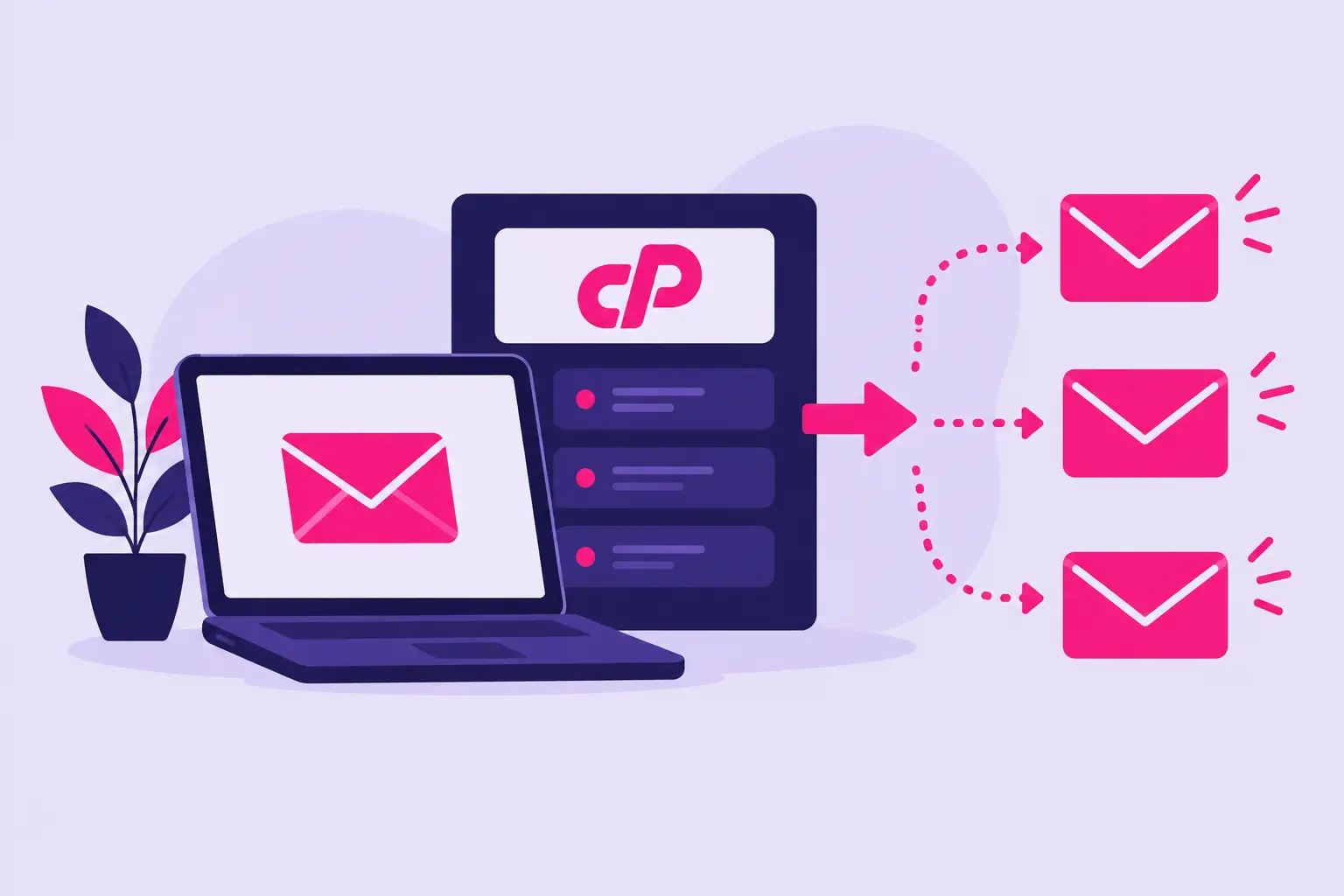
A missed message from a new customer can cost more than the few minutes it takes to organize your inbox. If you use a domain-based email address, learning how to set up an email forwarder in cPanel lets you send messages from one address to another automatically – without constantly checking multiple mailboxes.
Email forwarding is useful when you want a professional public address, such as `[email protected]`, but prefer to read messages in an inbox you already use. It can also keep contact-form messages, department emails, and temporary campaign addresses from slipping through the cracks.
What an email forwarder does
An email forwarder sends a copy of incoming mail from one email address to another. For example, a message sent to `[email protected]` can be forwarded to `[email protected]` or another mailbox on your domain.
The original delivery behavior depends on how you configure the source address. If you create a forwarder from an existing mailbox, messages may remain in that mailbox while also being sent onward. If you forward an address that does not have its own mailbox, the mail is simply routed to the destination you specify.
That difference matters. Keeping a copy in the original mailbox gives you an archive under your domain, but it uses mailbox storage. Forwarding only can be simpler for low-volume addresses, though you will rely on the destination inbox as your main record.
Before you create a forwarder
Have the source and destination addresses ready. The source is the address people will send mail to, such as `[email protected]`. The destination is where you want to receive that mail.
If your destination is an outside provider like Gmail, Outlook, or Yahoo Mail, make sure it is an active address with room to receive messages. Also check its spam and filtering settings. A forwarder can send mail correctly, but the receiving provider may still classify a message as junk or reject it if the sender fails authentication checks.
Avoid forwarding mail back to the same address or creating a chain that loops between inboxes. cPanel may detect a loop and stop delivery, but it is better to prevent the issue from the start.
How to set up an email forwarder in cPanel
The labels may look slightly different depending on your hosting plan and cPanel theme, but the process is usually the same.
1. Sign in to cPanel
Log in to your hosting account and open cPanel. In the Email section, select Forwarders. On some accounts, you may see this listed as Email Forwarders.
If you manage more than one domain in the same cPanel account, confirm you are working with the correct domain before continuing.
2. Select Add Forwarder
Choose Add Forwarder to open the setup screen. cPanel will ask for the address you want to forward from and the destination where mail should be delivered.
In the Address to Forward field, enter the name that comes before the @ symbol. For example, enter `info` if you want to forward mail sent to `[email protected]`.
Then use the domain drop-down menu to select the correct domain. This is especially important if you host several websites or domains in one account.
3. Enter the destination email address
Under Destination, select the option to forward to an email address. Type the full destination address, such as `[email protected]`.
Choose an inbox that you check consistently. For a small business, that may be the owner’s main mailbox or a shared team inbox. For a blog, it might be the address used for partnership requests. The practical goal is simple: messages sent to your public address should reach the person responsible for responding.
cPanel may also offer advanced destination options, including forwarding to a system account, discarding mail, or sending it to a program. These are intended for specific server or development workflows. For normal business email, forwarding to a standard email address is the right choice.
4. Create and confirm the forwarder
Click Add Forwarder or Create. cPanel should show a confirmation message when the rule has been saved.
Return to the Forwarders page and look for the new entry in the list. Confirm that both the source address and destination address are correct. One small typing error can send customer messages to the wrong inbox or make it appear that forwarding is not working.
5. Send a test message
Use a separate email account to send a brief test message to the new forwarding address. Give it a few minutes, then check the destination inbox, including its Spam or Junk folder.
A successful test confirms that the forwarder is active. It does not always prove that every sender will deliver the same way, since mail providers apply their own spam and authentication rules. Still, testing right away catches most setup mistakes before the address is published on your website or business materials.
Create a mailbox first when you need a copy
A forwarder does not always need a mailbox, but creating one is often the better choice for important business addresses. For instance, you might create `[email protected]`, then forward it to the people handling support requests.
This setup provides two benefits. Your team can receive messages in their preferred inboxes, while the original support mailbox can retain a copy for review. It is useful when multiple people need access, when you want a backup record, or when you may change the forwarding destination later.
The trade-off is storage management. If your business receives a high volume of mail or large attachments, check the mailbox regularly and remove messages you no longer need. You can also use an email client or webmail to keep the mailbox organized.
When to use a forwarder instead of a separate inbox
Forwarders work best when one person or team needs to receive mail from several professional-looking addresses. A freelancer may forward `projects@`, `invoices@`, and `contact@` to one inbox. A small company may route `sales@` to a sales lead and `careers@` to the person managing applications.
A separate mailbox is usually better when the address needs its own login, its own storage, or access for multiple staff members. For example, an employee who needs to send and receive mail as `[email protected]` should generally have a dedicated mailbox rather than a simple forwarder.
You can use both approaches together. Create dedicated mailboxes for active team members, then use forwarders for role-based addresses that may need to reach one or more people.
Common email forwarding problems
If messages do not arrive, start by checking the forwarder entry in cPanel. Make sure the source address, domain, and destination are spelled correctly. A common issue is selecting the wrong domain from the drop-down menu.
Next, inspect the destination inbox’s Spam or Junk folder. Some providers are stricter with forwarded mail, especially if the original sender’s domain has weak SPF, DKIM, or DMARC authentication. This is not always a hosting problem. It can be a decision made by the receiving email provider.
If only some messages are missing, ask the sender whether they received a bounce notice. A bounce can reveal whether the destination mailbox is full, unavailable, or rejecting forwarded messages. For ongoing problems, review your domain’s email authentication settings and contact hosting support with the sender address, recipient address, approximate sending time, and any bounce message available.
Do not use the default address, sometimes called a catch-all address, as a replacement for normal forwarders unless you have a specific reason. A catch-all can receive mail sent to misspelled or nonexistent addresses on your domain. That may sound helpful, but it can also attract a large amount of spam and make legitimate messages harder to find.
Keep your forwarding setup easy to manage
Use clear, purpose-based names for addresses and review them as your business changes. An old `events@` or `press@` forwarder may still receive messages long after the original project ends. Update the destination or remove the forwarder so sensitive communication does not go to the wrong person.
For addresses shown publicly, keep your destination mailbox secure with a strong password and two-factor authentication where available. Forwarding makes email easier to manage, but it also means one inbox may receive important messages from several business addresses.
A well-planned forwarder gives your business a professional point of contact without adding unnecessary inboxes. Set it up, test it once, and keep the destination current so every message has a clear place to go.