
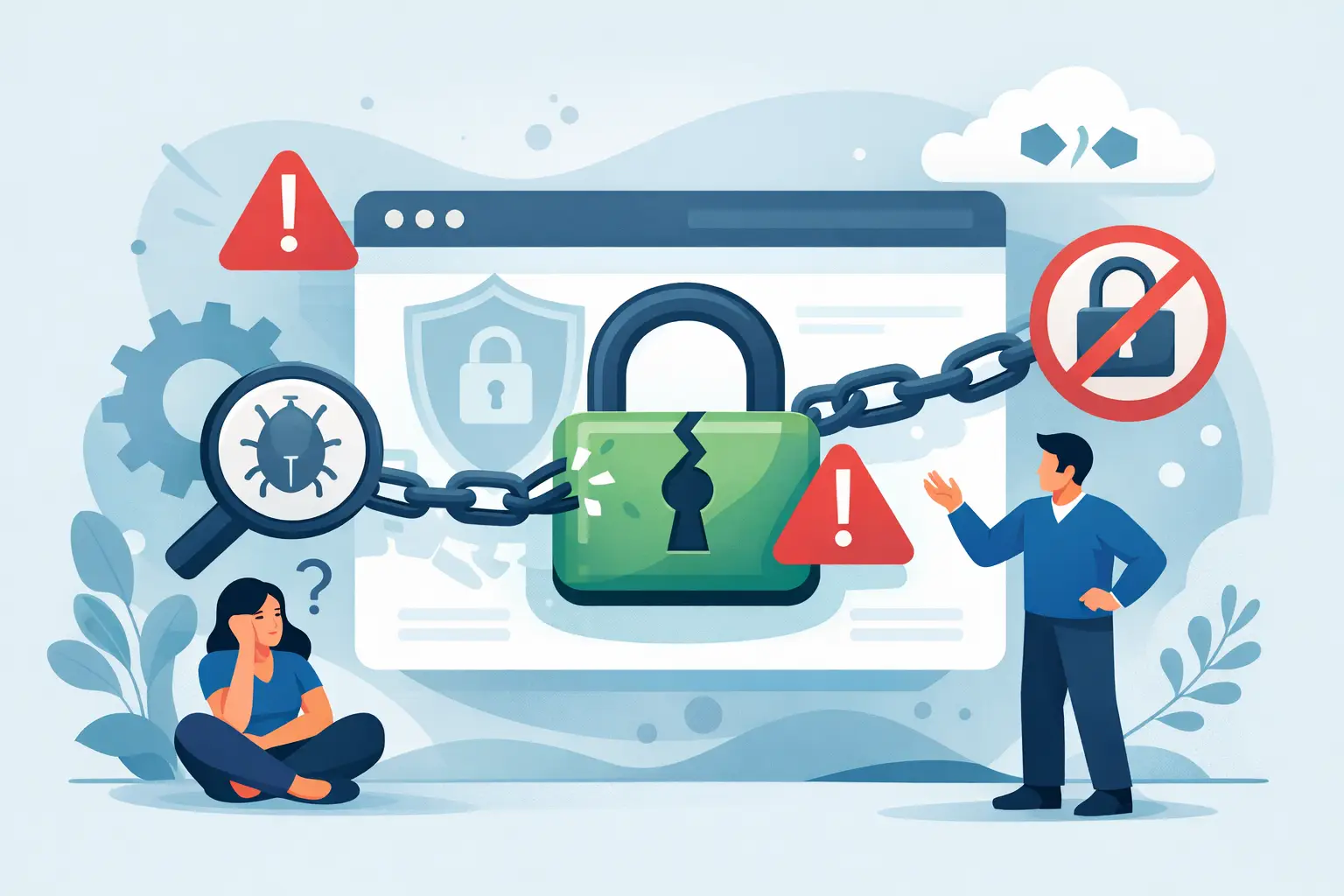
Your browser says “Not Secure,” even though you already installed a certificate. That is usually the moment people ask, why is ssl not working, and the answer is rarely just one thing. SSL issues often come down to a mismatch between your domain, your hosting setup, your website settings, or the time it takes for changes to fully apply.
The good news is that most SSL problems are fixable without advanced server knowledge. If you run a small business site, blog, portfolio, or online store, you do not need to become a system administrator to sort this out. You just need to know where the failure is happening.
Why is SSL not working even after installation?
A certificate can be installed and still not work the way you expect. That is because SSL depends on several parts working together: the domain must point to the right server, the certificate must match the domain, the site must load over HTTPS, and no page elements should still call insecure HTTP resources.
In plain terms, SSL is not just a switch you turn on. It is a chain. If one link breaks, visitors see warnings, redirects fail, or the padlock never appears.
One of the most common issues is timing. If you recently changed nameservers, updated DNS records, or issued a new certificate, the setup may still be propagating. In that case, the certificate itself may be valid, but some visitors are still reaching the old destination.
The most common reasons SSL stops working
Your domain is not pointing to the correct server
SSL certificates are tied to the server and domain setup. If your domain points somewhere else, the browser may receive the wrong certificate or no certificate at all. This often happens after a migration, a nameserver update, or a partial DNS change where the main domain points correctly but the www version does not.
If your site loads on one version of the domain but not the other, DNS is one of the first things to check. A certificate for example.com will not help much if www.example.com is resolving elsewhere.
The certificate does not cover the exact domain visitors use
This is another frequent source of confusion. Your SSL may be issued for one hostname, but visitors are using another. Maybe the certificate covers the root domain but not the subdomain. Maybe it works for www but not the non-www version. Maybe you set up a staging subdomain and assumed the same certificate would apply.
Browsers are strict here, and that is a good thing. If the certificate name and the domain in the address bar do not match, users see a warning.
HTTPS is not forced in your site settings
Sometimes SSL is installed correctly, but the website still loads over HTTP because the CMS, application, or redirect rules are not updated. WordPress is a common example. If the site URL in settings still uses HTTP, pages may continue loading insecurely even though the certificate is active.
This can look like a broken SSL setup when the real issue is that the website has not been told to prefer HTTPS.
Mixed content is breaking the padlock
Mixed content means your page loads over HTTPS, but some files on it still come from HTTP URLs. These files may be images, scripts, stylesheets, fonts, or embedded media. Browsers treat this as a security problem because part of the page remains unsecured.
This is why a homepage may technically load on HTTPS but still show warnings. The certificate is working, but the page is calling insecure resources. It is a website content issue, not always a certificate issue.
The SSL certificate has expired or failed to renew
Free SSL is convenient, but it still depends on successful renewal. If auto-renewal fails, the certificate can expire and trigger immediate browser warnings. This sometimes happens when DNS changes interrupt validation or when the hosting environment cannot complete the renewal check.
If SSL worked yesterday and suddenly stopped today, expiration is worth checking right away.
There is a redirect loop or bad .htaccess rule
Redirects can cause SSL to appear broken when the site is actually caught in a loop between HTTP and HTTPS, or between www and non-www versions. A small rule mistake in .htaccess, a plugin conflict, or duplicate redirect settings in cPanel and the CMS can trigger “too many redirects” errors.
This is one of those cases where more settings are not better. If several tools are all trying to force HTTPS at the same time, they may fight each other.
Your CDN or proxy settings are conflicting
If you use a CDN or proxy service, SSL may be configured both at the hosting server and at the external service level. That can work well, but only if the modes match. If one side expects full HTTPS and the other side is set to flexible or partial handling, the result can be warnings, loops, or connection failures.
This is a little more technical, but the principle is simple: the path between visitor, proxy, and hosting server must all agree on how secure traffic is handled.
How to troubleshoot SSL without making it worse
Start with the browser message itself. It usually gives a clue. A certificate mismatch, expired certificate, insecure content warning, or redirect error each point in a different direction. That matters because the fix for one can create new problems if the real issue is somewhere else.
Next, test both versions of your domain: with and without www, and on both HTTP and HTTPS. If only one version fails, that narrows things down quickly. You are no longer looking at a site-wide problem. You are looking at a hostname, redirect, or DNS problem.
Then check whether your SSL certificate is actually present in your hosting control panel. In a cPanel environment, this is usually easy to confirm. If the certificate is missing, invalid, or not assigned to the right domain, there is your answer. If it is present and valid, move on to website-level settings.
For CMS-based websites, check the site URL settings. Make sure the primary website address uses HTTPS. After that, clear cache at every level you use: browser cache, plugin cache, server cache, and CDN cache if applicable. Cached redirects can make a fixed problem look broken for longer than it really is.
If the site loads over HTTPS but still shows warnings, inspect the page for mixed content. Often the culprit is an old image URL hardcoded into a theme, page builder, or plugin setting. It can also come from older database entries that still reference HTTP.
When the problem is your hosting setup
Not every SSL issue is caused by the site owner. Sometimes the server configuration is the problem. The certificate might not have been installed correctly, the renewal process may have failed, or the hosting account may not have the domain fully attached in the expected way.
This is where reliable hosting support matters. If your provider offers free SSL but the certificate is not issuing, support should be able to tell you whether the problem is DNS validation, account configuration, or something on the server side. For beginners and busy site owners, this is often faster than trial and error.
A practical host should make SSL easy to activate, easy to verify, and easy to repair when something changes. That is especially important after migrations, domain changes, or new site launches.
Why is SSL not working after a site move or redesign?
Site moves create the perfect conditions for SSL trouble. DNS changes, new folders, updated CMS settings, plugin differences, and stale caches all happen at once. A redesign can also reintroduce old HTTP assets into your pages, even when the certificate itself is fine.
This is why SSL problems often show up right after a migration, not because SSL is unreliable, but because the environment around it changed. If you recently moved hosting, switched domains, or rebuilt your website, start there.
When to fix it yourself and when to ask for help
If the issue is clearly a website setting, such as HTTP URLs in WordPress or mixed content from old images, it is reasonable to fix it yourself. If the issue involves DNS records, certificate issuance failures, renewal problems, or repeated redirect errors, support is usually the smarter path.
There is no prize for spending four hours chasing an SSL issue that your host can confirm in five minutes. For many small business owners, the real goal is not mastering certificate management. It is getting the site secure and back online without losing time.
A secure site builds trust fast, and browser warnings do the opposite. If your SSL is not working, treat it as a configuration problem to isolate, not a mystery to fear. Work through the domain, certificate, HTTPS settings, and content paths one step at a time, and if the server side looks off, get expert support involved early. That is often the quickest route back to a working padlock.