
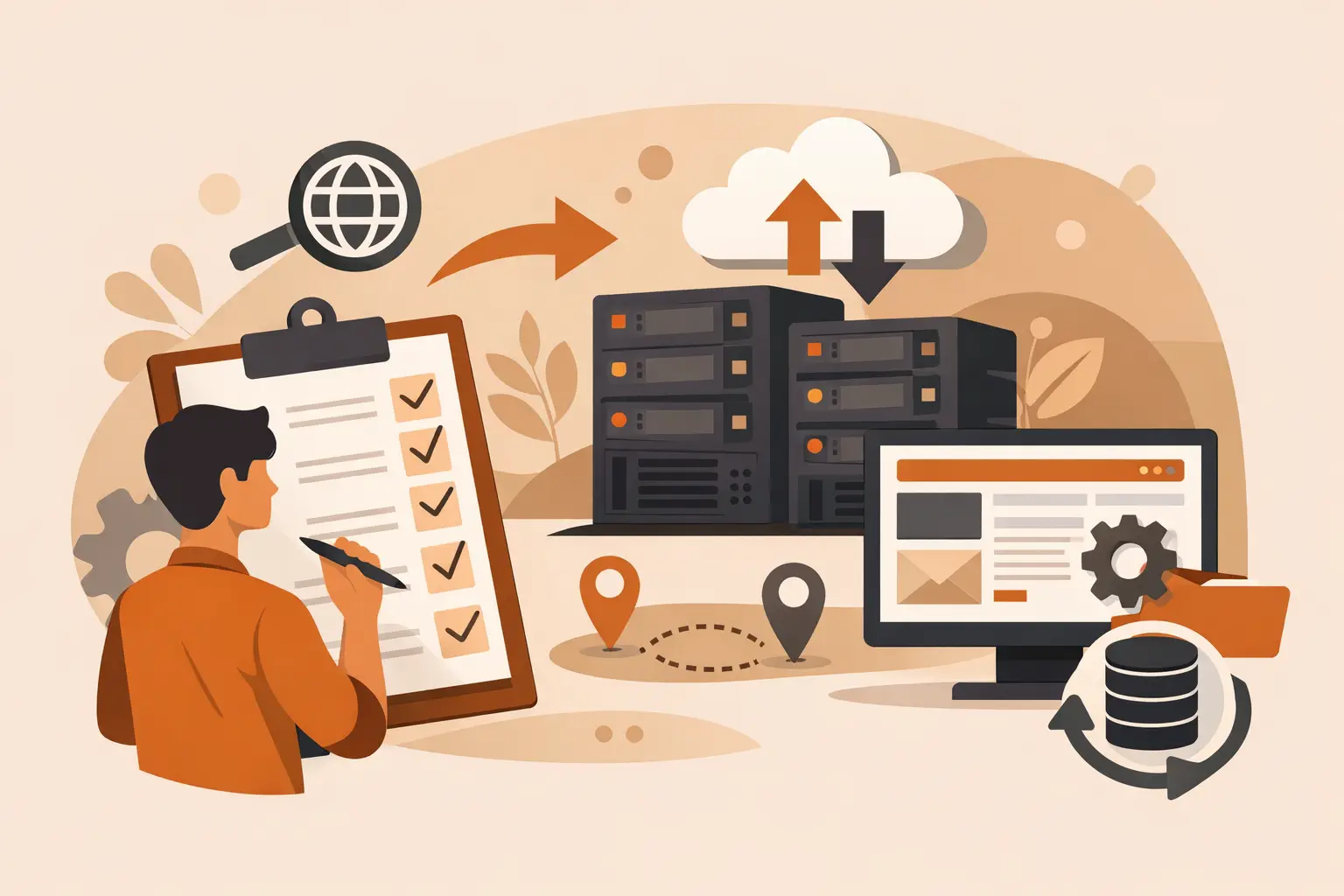
A hosting move can solve slow load times, unreliable support, and limits that no longer fit your site. It can also cause missed email, broken forms, lost files, or a surprise outage when rushed. This checklist before switching web hosts helps you prepare the move carefully, compare plans fairly, and keep your website available for visitors.
Start With the Reason You Are Moving
Write down what is not working with your current host before you compare prices. Is your website slow during busy periods? Are you waiting too long for support? Is the control panel difficult to use, or are you paying for resources you do not need? A clear reason keeps you from moving to a similar plan with the same limitations.
For many small business owners and bloggers, the right host is not the one with the longest feature list. It is the one that gives you enough storage and performance for your current traffic, a familiar way to manage the account, and helpful support when something goes wrong. If your site is growing quickly, leave room for that growth. If it is a small brochure site or personal blog, avoid paying for server power you will never use.
Compare More Than the Introductory Price
Low monthly pricing can be useful, but it is only one part of the decision. Check the regular renewal price, the plan term, included resources, and any paid add-ons you may need. A plan that looks cheaper at checkout can cost more later if essentials such as backups, security, or email require separate purchases.
Look closely at what the host includes for the features that affect day-to-day operation. SSD storage, free SSL certificates, a cPanel-based account, one-click software installation, and support availability are practical benefits, not technical extras. They make it easier to manage WordPress, update files, create email accounts, and solve common problems without hiring help.
Also ask how the provider handles resource limits. Shared hosting is a cost-effective choice for many websites, but every shared plan has limits for storage, bandwidth, processing power, and the number of sites or databases. The best plan depends on your site. An online store, a busy membership site, and a simple portfolio do not have the same needs.
Make a Complete Backup Before Any Change
Do not rely on a host migration alone as your only copy of the site. Create and download a full backup from your current hosting account before the transfer begins. In cPanel, this may include your website files, databases, email data, and account settings.
For a typical WordPress site, you need both the website files and the database. The files contain themes, plugins, uploads, and core software. The database holds posts, pages, user information, settings, and often order or form data. Copying only one of these can leave you with a site that looks incomplete or fails to load.
Keep the backup somewhere separate from both hosting accounts, such as secure local storage or a trusted cloud storage account. If your website changes frequently, make one backup before migration starts and another right before the final DNS change. That second copy can capture recent form submissions, blog comments, orders, or updates.
Audit Your Domain, DNS, and Email Setup
Your domain registration and hosting account may be with the same company, but they do not have to be. Find out where the domain is registered and make sure you can log in to that registrar account. Check that the registrant email address is current, since approval emails and security notices may go there.
Review your DNS records before moving. These records tell the internet where to find your website, email, and services. Record your current nameservers, A records, CNAME records, MX records, TXT records, and any special entries for services such as email marketing, payment processing, or site verification.
Email deserves extra attention. If you use addresses such as [email protected], confirm where the mailboxes are hosted and how their contents will be moved. A website can transfer correctly while incoming email stops because the MX records were missed. Make a list of every mailbox, forwarder, autoresponder, and mailing list you depend on.
Check for Domain Transfer Limits
You do not have to transfer your domain registration to switch hosts. Keeping the domain at its current registrar and pointing it to the new hosting account is often the simplest first step. If you do want to transfer the domain, check whether it is locked, whether its contact details are accurate, and whether it was registered or transferred within the past 60 days. These factors can delay a transfer.
Confirm What Will Be Migrated
Ask the new host exactly what its migration process covers. Some providers move cPanel accounts with much of the account structure intact. Others transfer only website files and databases. There is no single best option, but you should know what work remains on your side.
A full migration should account for the website, databases, email mailboxes, DNS records, SSL setup, and application configuration. If your site uses a custom application, an online store, or a scheduling tool, identify any settings that depend on the old server. This can include PHP versions, cron jobs, file permissions, cache settings, and external service connections.
Keep your old hosting account active until the move has been tested and DNS has fully updated. Canceling too early is one of the easiest ways to lose access to files, email, or the old site when you need to compare settings.
Test the New Hosting Account Before Updating DNS
A migration is not finished when the files appear in the new account. Test the site on the new server before directing public traffic there. Your host may provide a temporary URL, a preview method, or instructions for using a hosts file to see the site safely before DNS changes.
Check the pages that matter most to your visitors and business. Load the homepage and key service pages, submit every contact form, log in to the admin area, test checkout if you sell online, and review images, menus, and downloadable files. If you use WordPress, confirm that plugins, scheduled tasks, and permalinks work as expected.
Use this time to verify the PHP version and SSL certificate. An older plugin may need a specific PHP version, while a newer version can improve speed and security. The right choice depends on your software compatibility, so test before making a permanent change.
Plan the DNS Change to Reduce Disruption
When the new site is ready, update your nameservers or the relevant DNS records. DNS changes can take time to spread across the internet. Some visitors may reach the old server while others reach the new one during that window.
If you control the DNS zone, lowering the TTL value a day or two before the change can help updates take effect sooner. It does not eliminate propagation time, but it can reduce it. Do not make major website edits during the transition unless you know which server is receiving the change.
After updating DNS, monitor both website access and email delivery. Test from a phone using cellular data as well as your usual Wi-Fi connection. This gives you a better view of what visitors may see while records update.
Review Security and Ongoing Maintenance
A new hosting account is a good time to reset the basics. Use a strong, unique password for your hosting login, domain registrar, email accounts, and WordPress administrator account. Turn on two-factor authentication where available, and remove old user accounts or unused applications.
Confirm that SSL is active and that your site loads with HTTPS. Set up dependable backups on a schedule that matches how often your content changes. A static site may need weekly backups, while a store or active blog may need daily backups. Also make sure spam protection, malware scanning, and uptime monitoring are configured if those services are part of your plan.
Keep a Post-Move Watch List
For the first week after switching, watch for issues that only appear under normal use. Check analytics, form notifications, email sending, error logs, and page speed. Ask a few trusted customers or colleagues to report anything unusual, especially if they use different devices or locations.
Once everything is stable, document your new account details, renewal dates, support contact process, and backup location. A dependable hosting setup should make website management easier, not give you another system to worry about. For site owners who want familiar cPanel tools, free SSL, and help when they need it, a provider such as Visiba can make that next step feel manageable.