
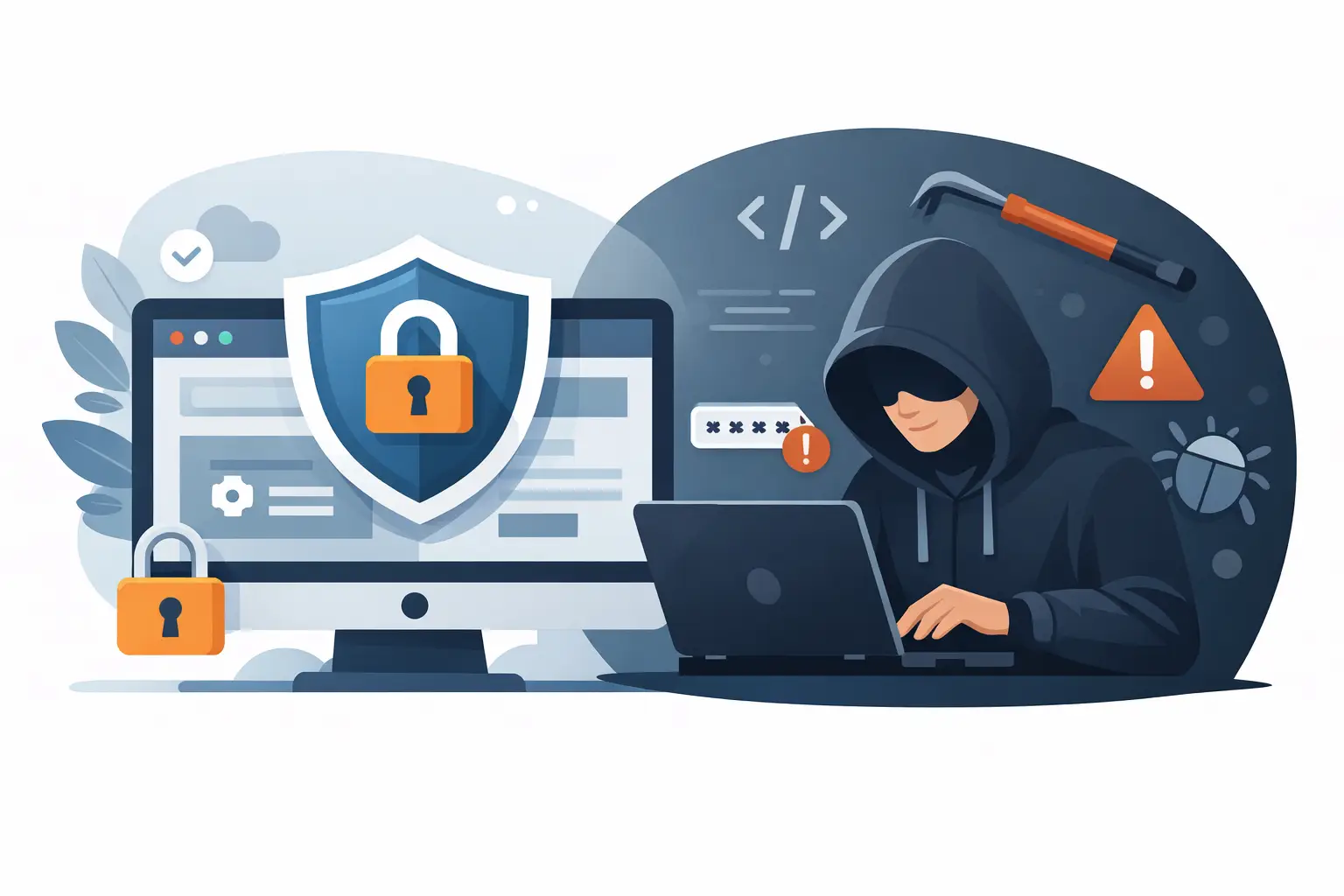
A brute force attack does not need a sophisticated trick to cause trouble. It simply keeps trying usernames and passwords until it finds a weak combination. Knowing how to protect your website from brute force attacks helps you prevent account takeovers, slow performance, spam, and expensive recovery work before they affect your visitors.
For a small business site, blog, or online portfolio, the biggest risk is often a login page left with default settings. A few practical controls can dramatically reduce that risk without making your site difficult to manage.
What a Brute Force Attack Looks Like
Attackers use automated tools to submit large numbers of login attempts in a short period. They may guess common passwords, try passwords leaked from unrelated services, or repeatedly target common administrator usernames such as “admin.” WordPress login pages, cPanel accounts, email accounts, and ecommerce dashboards can all be targets.
You may notice unusually high CPU usage, a slower website, repeated failed-login alerts, unfamiliar IP addresses in access logs, or notifications that your account has been locked after too many failed attempts. In some cases, there is no obvious warning until an attacker gets in.
A successful attack can lead to changed site content, malicious redirects, stolen customer information, spam email sent from your domain, or lost access to your own account. Even unsuccessful attempts can consume server resources and make a shared hosting account perform poorly.
How to Protect Your Website From Brute Force Attacks
The goal is not to make logins impossible. It is to make automated guessing slow, limited, and ineffective while keeping access straightforward for legitimate users. Start with the controls that provide the most protection for the least effort.
Use unique, long passwords everywhere
A password should be long, unique, and not based on information someone could find on your website or social profiles. Avoid company names, birthdays, keyboard patterns, and reused passwords. A password manager is the simplest way to create and store strong passwords without needing to memorize them.
This applies to more than your website administrator account. Change weak or reused passwords for your hosting account, cPanel, FTP or SFTP users, database users, business email, domain registrar account, and any installed application administrators. One compromised account can provide a path to the rest.
If several people work on the site, give each person their own login. Shared administrator credentials make it difficult to remove access when a contractor leaves and impossible to tell who made a change. Set only the permissions each person needs.
Turn on two-factor authentication
Two-factor authentication adds a second check after the password, usually a code from an authenticator app. If a password is guessed, reused from a breach, or accidentally shared, the attacker still cannot sign in without that second factor.
Enable it first for your hosting, domain, email, and website administrator accounts. These accounts have the greatest impact if compromised. Save backup recovery codes somewhere secure, separate from the device you use for authentication. Without them, a lost phone can turn a security feature into an access problem.
Two-factor authentication adds a few seconds to the login process. That is a worthwhile trade-off for administrator accounts. For a public-facing customer login area, consider your audience and platform features before requiring it for every user.
Limit failed login attempts
A login form that accepts unlimited password guesses gives automated tools the time they need. Configure your website software or security tool to limit repeated failed attempts from the same IP address, username, or both. After several failures, temporarily block the source or require an additional challenge.
The right limit depends on the site. Five failed attempts within a short period is common for administrator logins. A very strict setting can lock out legitimate users who mistype passwords, while a loose setting offers little protection. Choose a reasonable timeout and make sure legitimate users have a clear password-reset option.
For WordPress, use a trusted security or login-protection plugin with rate limiting and login alerts. Keep the number of plugins low and use well-supported options. Installing multiple security plugins that overlap can create conflicts, slow the site, and make troubleshooting harder.
Add a web application firewall or CAPTCHA
A web application firewall can identify and block suspicious traffic before it reaches your login page. Many services also provide bot detection, rate limiting, and protection against common web attacks. This is especially helpful for sites that receive frequent unwanted login traffic or have a public ecommerce or membership area.
CAPTCHA or similar human-verification tools can also stop basic automated bots. Use them carefully. An aggressive challenge at every login can frustrate real customers, particularly on mobile devices. It often makes more sense to show a challenge only after suspicious behavior or repeated failed attempts.
Protect the administrator login path
Do not use “admin” as an administrator username. Create a distinct username that is not displayed publicly in author pages, posts, or staff profiles. If your platform allows it, restrict administrator access to known IP addresses or place the login area behind an extra authentication prompt.
IP restrictions work best when you or your team use stable office or home IP addresses. They can become inconvenient for people who travel, work from changing networks, or use mobile internet. In those cases, two-factor authentication and login rate limiting are usually more practical.
Also disable or limit unused login methods. For example, if remote publishing, XML-RPC, unused API keys, FTP accounts, or old user profiles are not needed, turn them off or remove them. Every active access point deserves a strong password and regular review.
Keep Your Website Software Current
Outdated software gives attackers another way in when password guessing fails. Update your content management system, themes, plugins, extensions, and server-side software as soon as practical. Security updates are especially urgent because attackers often scan for known weaknesses after a vulnerability becomes public.
Before major updates, create a backup and confirm that your site is compatible with the new version. This is where small site owners need balance. Delaying every update is risky, but applying a major change without a backup can also cause downtime. For a business-critical site, test significant changes in a staging environment when available.
Remove themes, plugins, scripts, and user accounts you no longer use. Inactive software can still contain vulnerabilities, and abandoned plugins may not receive security fixes. Fewer components mean fewer maintenance tasks and a smaller attack surface.
Back Up for Recovery, Not Just Peace of Mind
Backups do not block brute force attempts, but they are essential if an account is compromised. Keep automated backups on a regular schedule and make sure at least one copy is stored separately from the website account. If an attacker gains hosting access, a backup saved only in the same account may not be enough.
Your backup should include website files, databases, email if needed, and configuration details. Just as important, know how to restore it. A backup that has never been tested may be incomplete or outdated when you need it most.
Choose a backup schedule based on how often your site changes. A static brochure site may need weekly backups, while an online store, active blog, or appointment site may need daily backups or more frequent database protection.
Use Your Hosting Controls and Support
Your hosting account is part of your security setup. Review account access regularly, use secure SFTP rather than unencrypted FTP where possible, and protect cPanel with a unique password and two-factor authentication. Check that free SSL is active so login credentials and customer data are encrypted in transit.
A quality hosting provider can help with server-level monitoring, malware concerns, account access questions, and resource spikes. Visiba customers can use familiar cPanel tools and available support when suspicious activity needs a closer look. Hosting support cannot choose safe passwords or manage every website plugin for you, but it can be an important layer when something does not look right.
What to Do If You See Suspicious Login Activity
Act quickly if you receive unexpected password-reset emails, login alerts, or reports of unfamiliar changes. Change the affected password immediately, then change any other account that used the same password. End active sessions if your platform provides that option, review administrator users, and check recent file and plugin changes.
Next, enable two-factor authentication, review failed-login logs, and temporarily tighten rate limits or firewall rules. If you believe an attacker accessed the account, restore from a known-clean backup only after identifying how access was gained. Otherwise, the same weakness can lead to another compromise.
A secure website is built through small, repeatable habits: unique passwords, two-factor authentication, limited login attempts, current software, and backups you can restore. Set these controls up before an attack becomes an emergency, then spend your time running your site instead of recovering it.